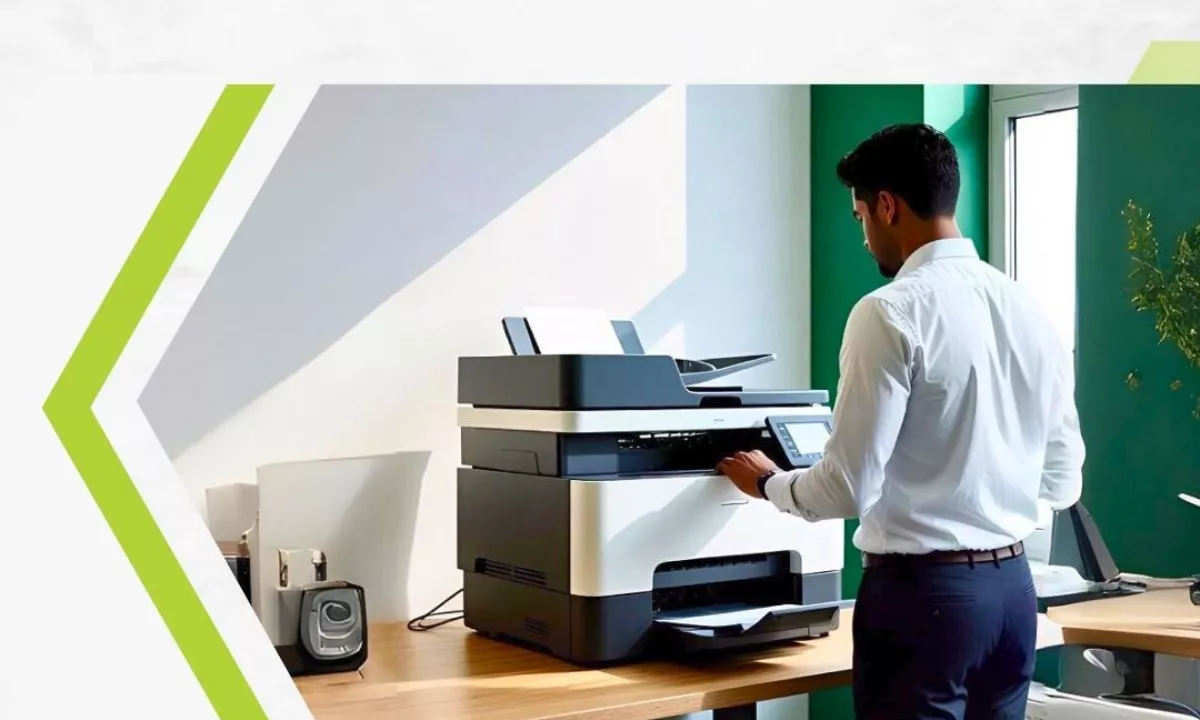

Everybody experiences it you hit print on an important document and the printer just sits there silently. Dealing with stubborn devices can completely disrupt workflow and cause unnecessary stress; if this has become your experience then professional help from Egreen may be worth considering; but before spending money on Inkjet Printer Repair service there may be steps that you can try at home that may resolve this problem first.
Many printing issues stem from simple issues that don’t require technical expertise to resolve. A quick system reset might do just the trick to restore paper feeding; other times requiring deeper attention like clearing jams or cleaning components may require.
Learning how to diagnose basic hardware and software issues will save time and money. We have put together a list of common inkjet malfunctions with their solutions so you can troubleshoot with confidence.
Top Reasons Your Inkjet Printer Is Unresponsive
Understanding why your device is failing is the first step toward finding an effective solution. Inkjet models rely on complex mechanisms and liquid ink for their functionality, making them vulnerable to various types of malfunction.
Empty or Incorrectly Installed Ink Cartridges
Problems with ink cartridges are frequently the source of printing failure. Your computer might not display low ink warnings if using third-party supplies; additionally, a cartridge not properly installed into its carriage might go undetected by your machine; always ensure all protective plastic tape has been completely removed from copper contacts prior to installing a brand-new cartridge in its carriage.
Clogged Printheads
Since inkjet printers use liquid ink, which may dry out over time if left unused for extended periods. When this occurs, dried ink blocks the microscopic nozzles on the printhead resulting in pages being printed blank, streaky or without certain colors entirely something all home users who only print documents occasionally face as an issue. Regular Printer Servicing can prevent many such headaches but sudden breakdowns still necessitate prompt action to keep life moving along as scheduled.
Problems Related to Network Access/Connection.
An printer cannot perform its duties if it cannot communicate with either your computer or mobile device. A loose USB cable could quickly break that link; wireless models might require password changes, router updates or network drops in order to function effectively; when these take place they take down their print jobs instantly but continue waiting in digital queue.
Damaged Printer Drivers
Drivers are crucial pieces of software which translate the computer commands you give into actions the printer understands. Operating system updates may cause these drivers to become outdated or corrupted and, should the bridge break between software and hardware cease responding as expected to your commands.
Step-by-Step Fixes to Get You Printing Again
Now that you understand what may be holding back progress, the next step should be tackling solutions step-by-step – beginning with those which seem easiest.
Review Connections and Queues
Start by checking both physical and digital connections: make sure the USB cable is securely inserted in both ends; or if using wireless, check that both computers belong to the same Wi-Fi network; open up your print queue – sometimes one corrupt document can block all subsequent jobs from printing properly clear it all out, restart your computer, and try printing a fresh test page if none work successfully.
Nozzle Check and Clean Printhead
If your machine is actively feeding paper but the pages remain blank or faded, a blocked printhead could be to blame. Navigate to the maintenance or settings menu on your printer’s LCD screen, where there should be an option labeled “Nozzle Check” or “Printhead Cleaning.” Running this utility forces small amounts of ink through each nozzle in order to unclog dry blockages; for severe blockages it may need running multiple times before clearing itself out completely.
Reseat and Replace ink Cartridges
Carefully open the access panel and take note when taking out all ink cartridges from their slots, inspect them for tape residue or dirt build-up on copper contacts and wipe these with a dry lint-free cloth as necessary. Reinstall each ink cartridge ensuring each clicks firmly into its designated slot; any cartridges feeling lighter may need replacement with new cartridges to see if that resolves errors in printing process.
Update or Reinstall Drivers on Your System
Once all hardware checks pass, software could likely be at fault. Visit your printer manufacturer’s official website and navigate to their support or downloads section; enter your model number, download drivers specific for your operating system and install/reboot after installing new software; this may help resolve hidden communication errors and restore full functionality in most instances. If these DIY steps don’t do the trick, searching for Printer Service Near me could be your next best bet for getting everything up-and-running again.
Maintain Smoothly-Running Hardware
Once an immediate error has been addressed, taking proactive measures will reduce its recurrence. Print at least one colorful page every week in order to keep ink flowing and prevent your nozzles from drying out; when not in use cover your machine to protect from dust settling onto internal rollers that could potentially cause paper jams taking good care in maintaining equipment extends its lifespan and ensures you always have it when needed.
Bring Your Printer Back Into Action
Troubleshooting an inkjet machine doesn’t need to be an intimidating ordeal all it requires is checking connections, clearing software queues and maintaining printheads in an organized fashion in order to solve most common printing errors quickly and painlessly yourself. Doing this step by step should restore workflow quickly should these steps fail, consult a Egreen’s technician who will ensure high-quality documents can be printed without delay or hassle
Facing printer issues? Get fast and reliable inkjet printer repair services—Contact us today for expert support!